Interface Overview
Overview
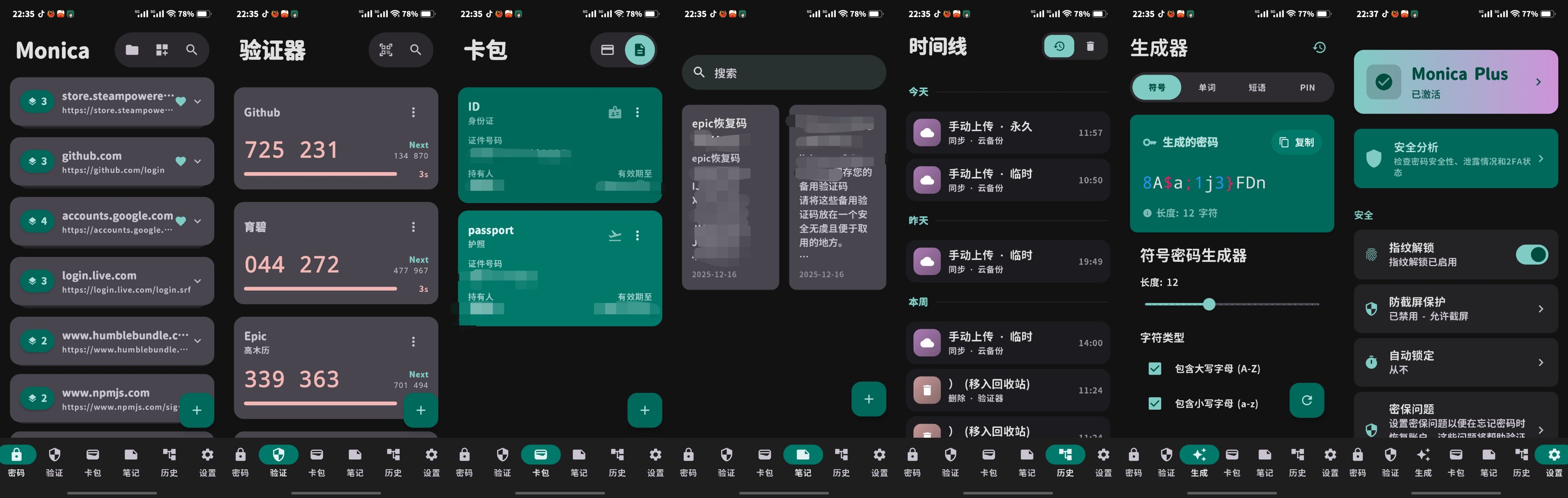
Monica features 7 main screens accessible via the bottom navigation bar: Password Manager, 2FA Authenticator, Card Wallet, Secure Notes, Timeline/Recycle Bin, Password Generator, and Settings.
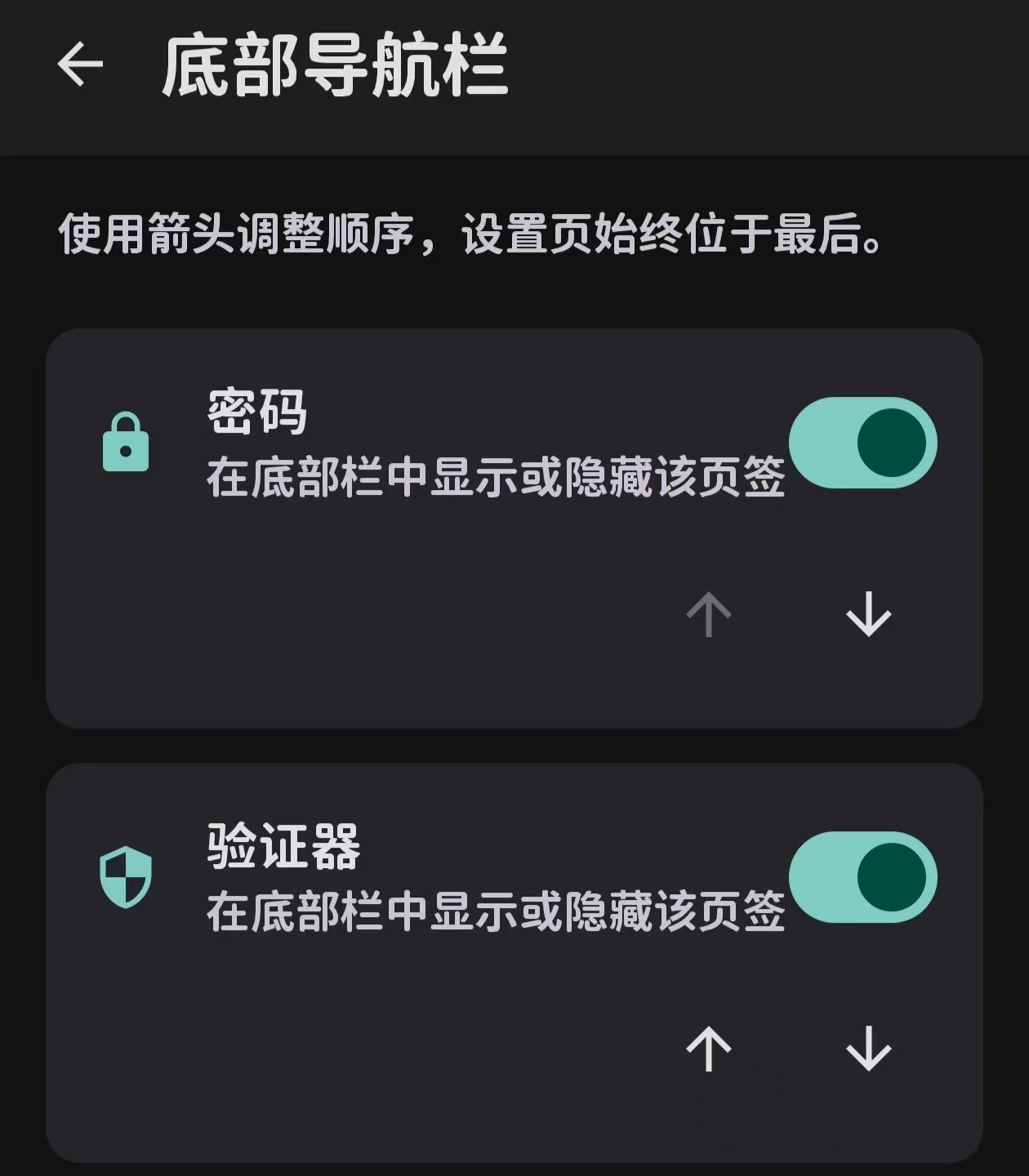
The bottom navigation items can be reordered or toggled on/off based on your personal preference.
Navigation Bar Management
You can choose to enable only the tabs that are useful to you, keeping your navigation clean and free from clutter.
Let's look at the Password Manager screen first.
Passwords Screen
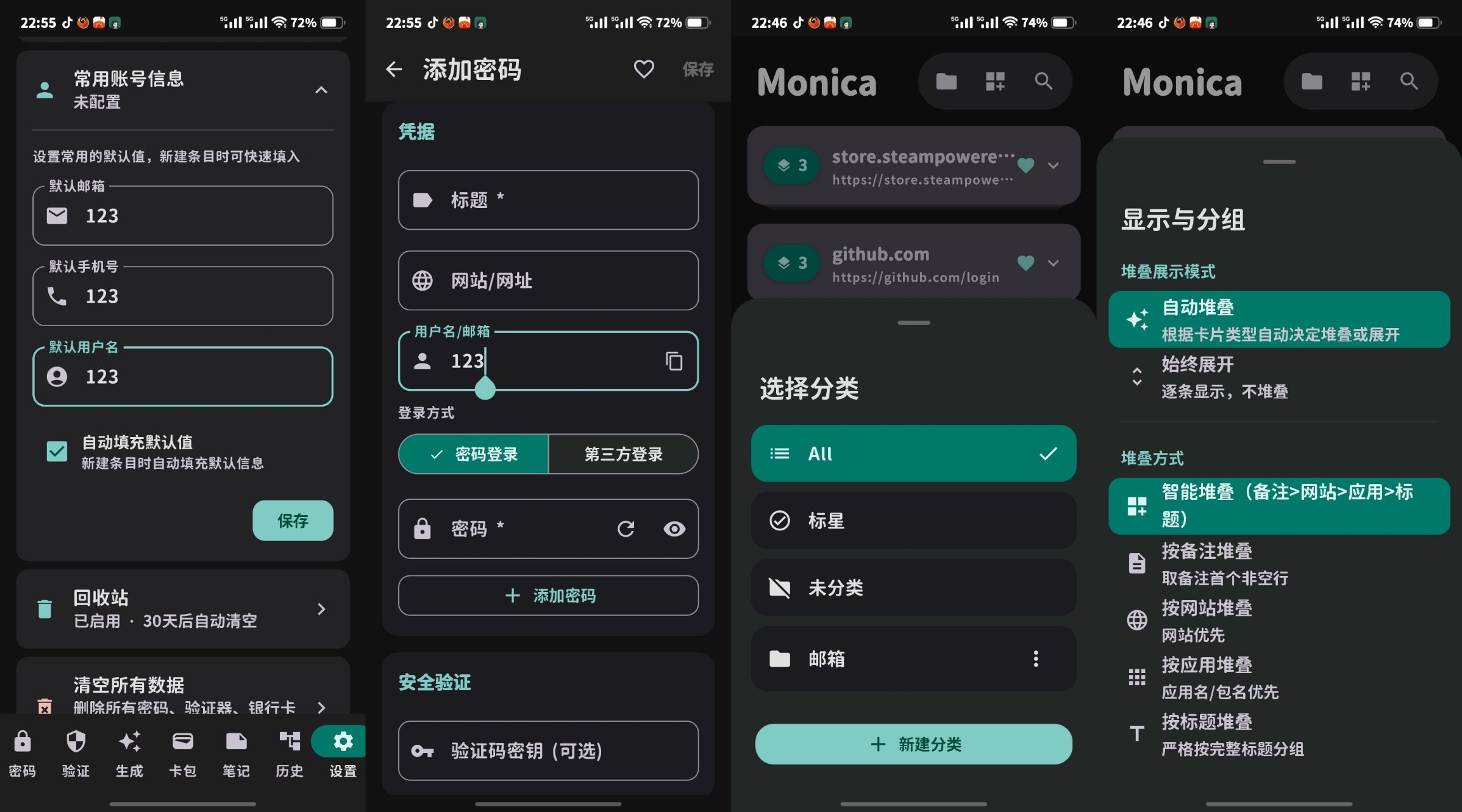
From left to right: Passwords main view, expanded stacked item cards, password details, and the edit/add password interface.
The core interface is straightforward and lets you effortlessly create and manage accounts.
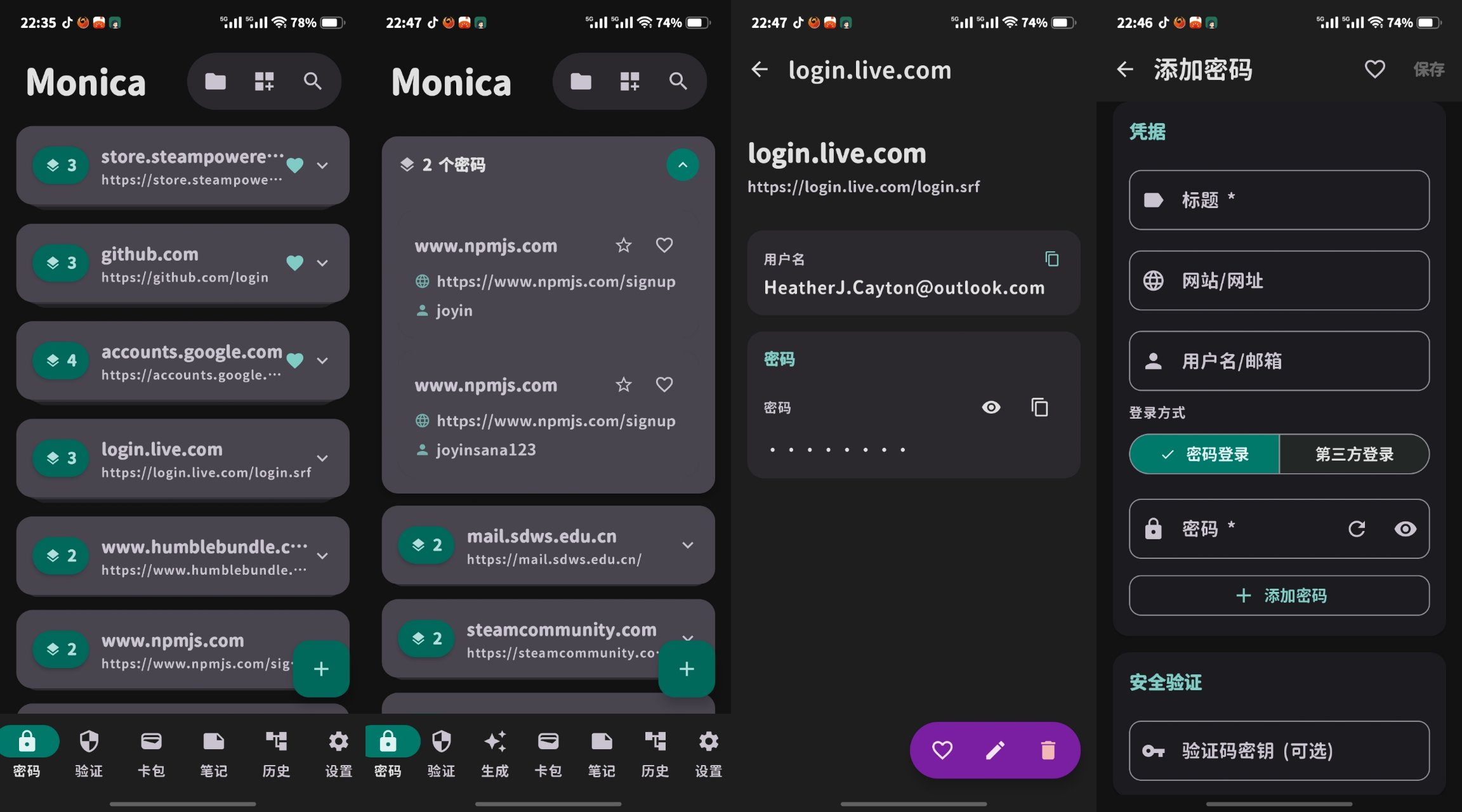
If you configure your "Common Account Info" in Settings, it will automatically populate when creating a new password. You can also tap "Third-Party Login" (shown in figure 2) to reference or link other credentials.
The top bar of the Passwords screen houses two buttons: the left one opens a bottom drawer to manage your categories; the second controls card stacking behavior (though the default look is already optimized).
Next is the multi-select screen, triggered by sliding cards to the right.
Multi-Select Interface
Swiping right enters the batch action mode, bringing up a bottom utility menu. From left to right, it displays: selected count, select all, add to favorites, add to category, and batch delete.
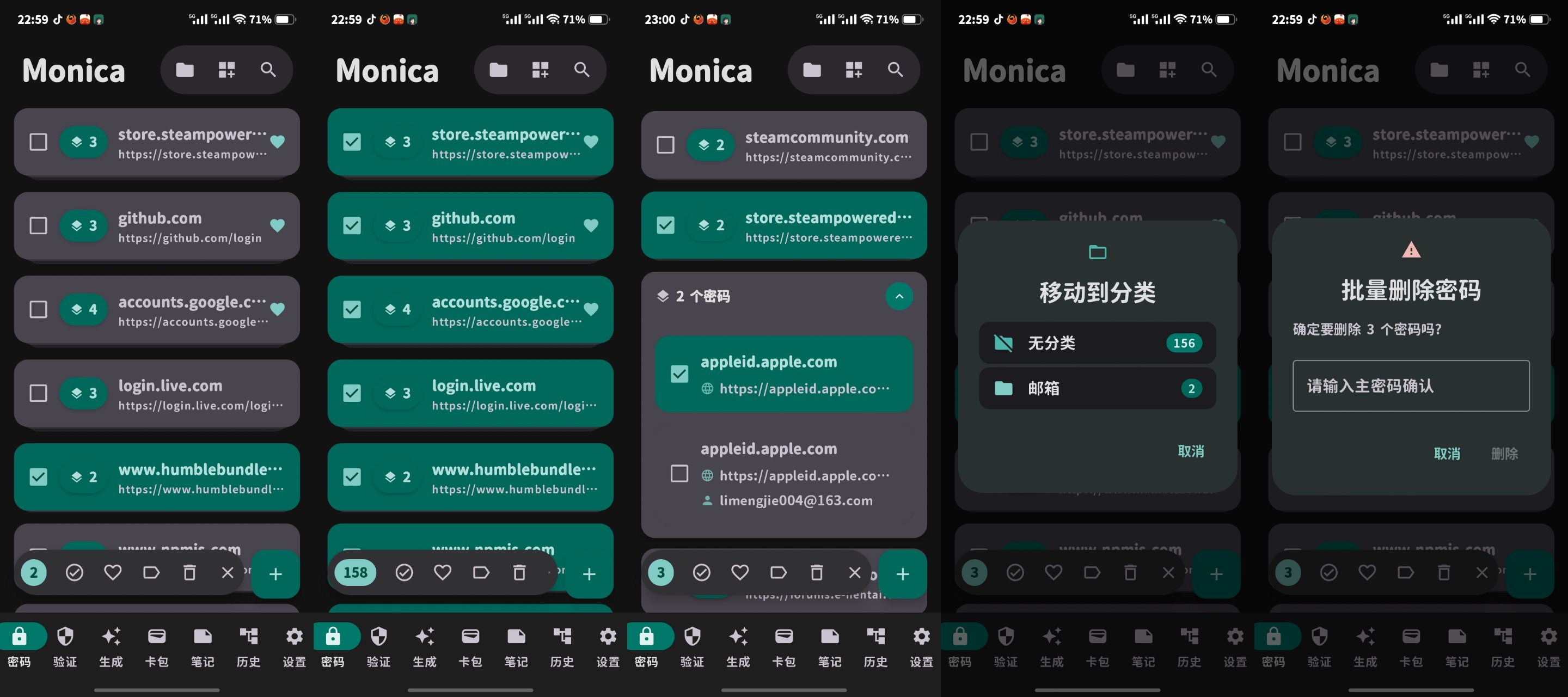
To safeguard against accidental data loss, batch deletion does not bypass user confirmation with biometrics alone. It deliberately forces a protective prompt layout requiring explicit intent to complete.
As for interaction logic, swiping right directly on a stacked card stack selects the entire group. Tapping a stack expands it instead, allowing for granular single-item selection.
When not in multi-select mode, a simple left-swipe on an item acts as a delete trigger. This swipe-to-delete logic applies across both Passwords and Authenticator tabs.
Let's move on to the 2FA Authenticator screen.
2FA Authenticator Screen
The 2FA Authenticator layout is incredibly clean. It follows the same swipe-right to multi-select and swipe-left to delete mechanics.
Tapping the add button in the bottom right corner opens the full Authenticator configuration page (Figures 2 & 3), where you can manually type parameters or scan QR codes. Alternatively, you can tap the very first icon on the top toolbar (Figure 1) to quickly scan a 2FA QR code on the fly.
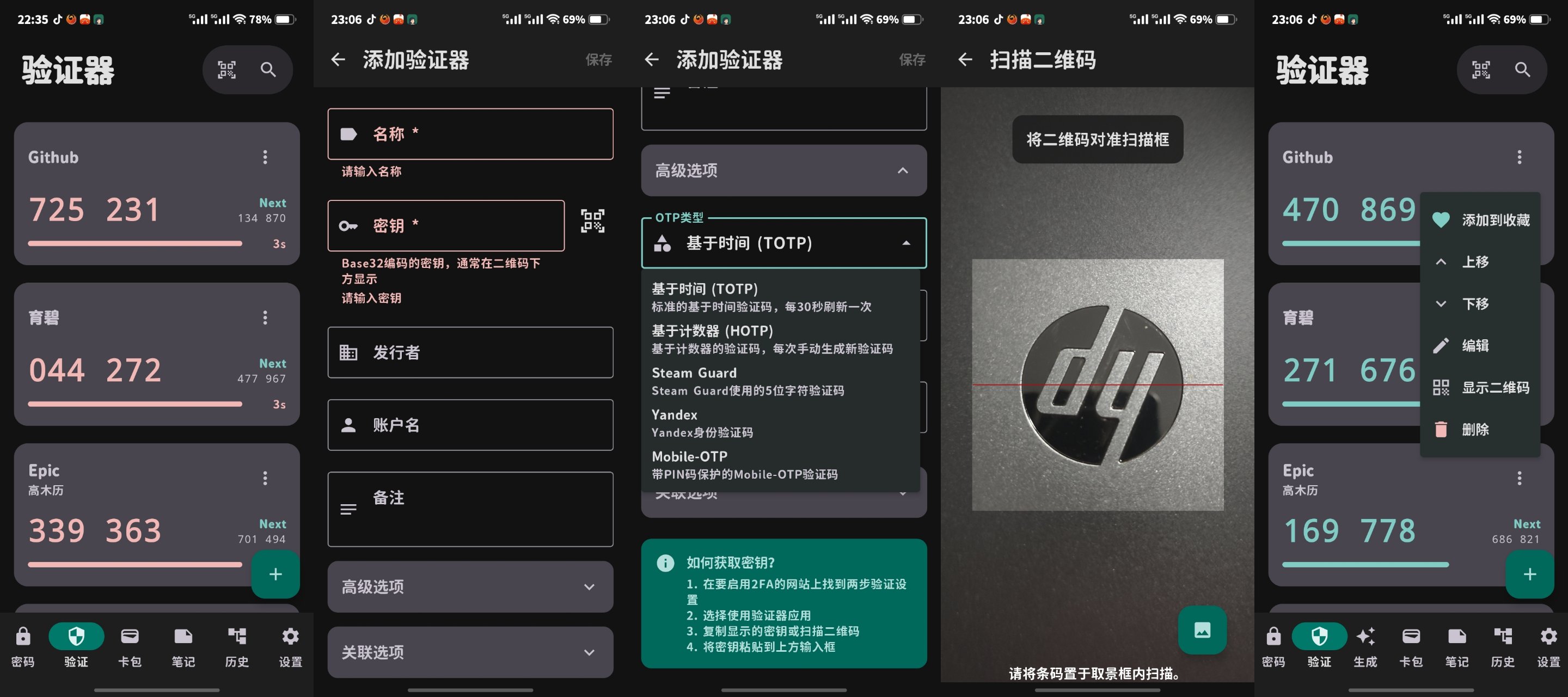
Tapping the three dots on the top right of an authenticator card opens an options menu for quick editing, deletion, or viewing the underlying QR code (perfect for migrating your setups elsewhere).
Tapping anywhere on a 2FA card copies the token instantly to your clipboard.
Authenticator Extensions
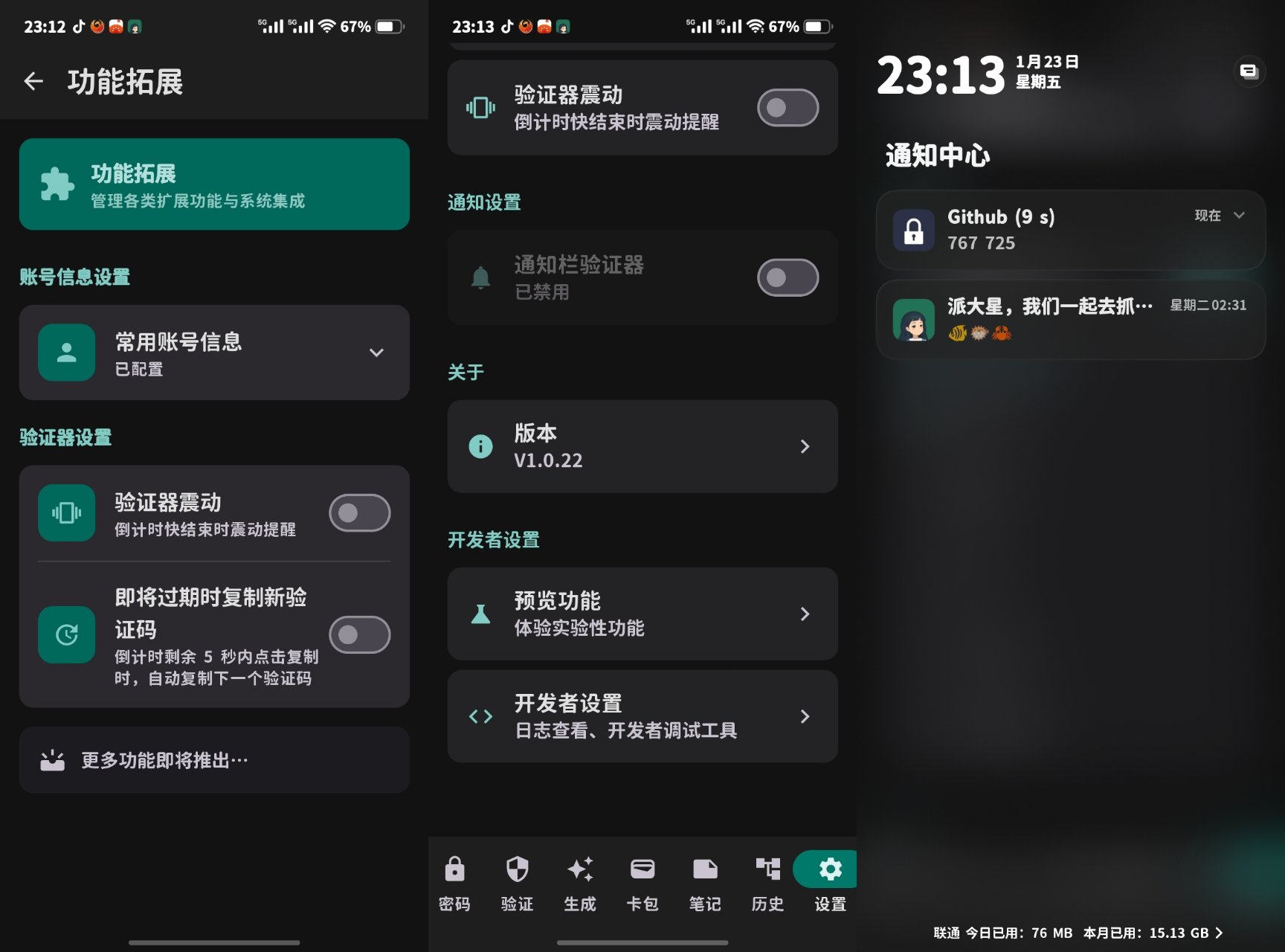
Under Settings -> Feature Extensions, you can enable "Copy Next Code Near Expiration." With this on, if you tap the card during the final 5 seconds of a countdown, it will intelligently copy the upcoming code instead of the expiring one.
You can also toggle "Authenticator Vibration," which vibrates in tandem with the final 5-second countdown. Turning on the notification display pins selected verification codes inside your Android notification shade for quick lookups (this setting resides in Extensions for now and will be relocated later).
Next up is the Generator tab.
Password Generator
The Generator page is simple and clean, grouping four distinct types of generators alongside a dedicated history view.
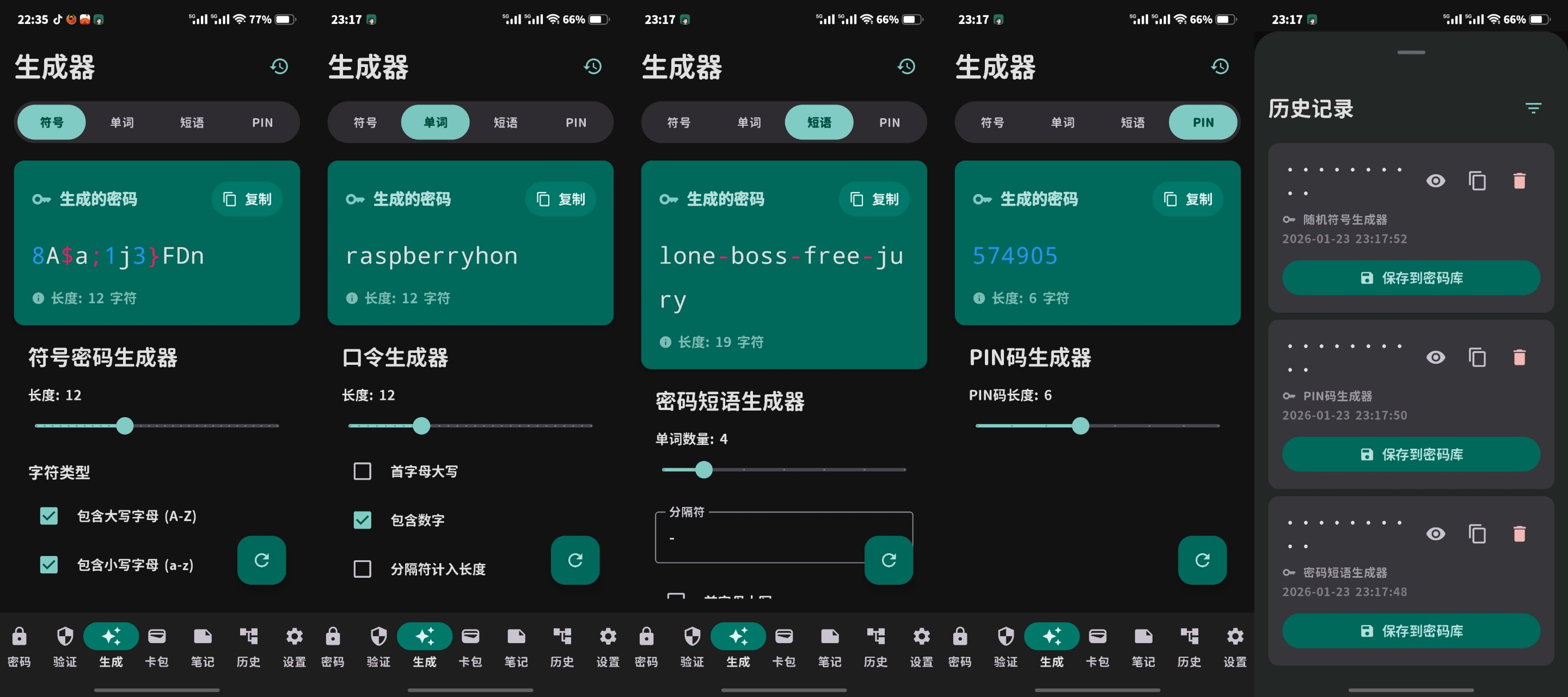
The History screen records all your generated configurations, ensuring you never lock yourself out if you create a complex password and forget to hit save.
Secure Notes Screen
The Secure Notes feature doesn't aim to replace fully-fledged text editors. It functions beautifully as a secure side-vault for backing up private text information, recovery keys, and seed codes in an encrypted ecosystem.
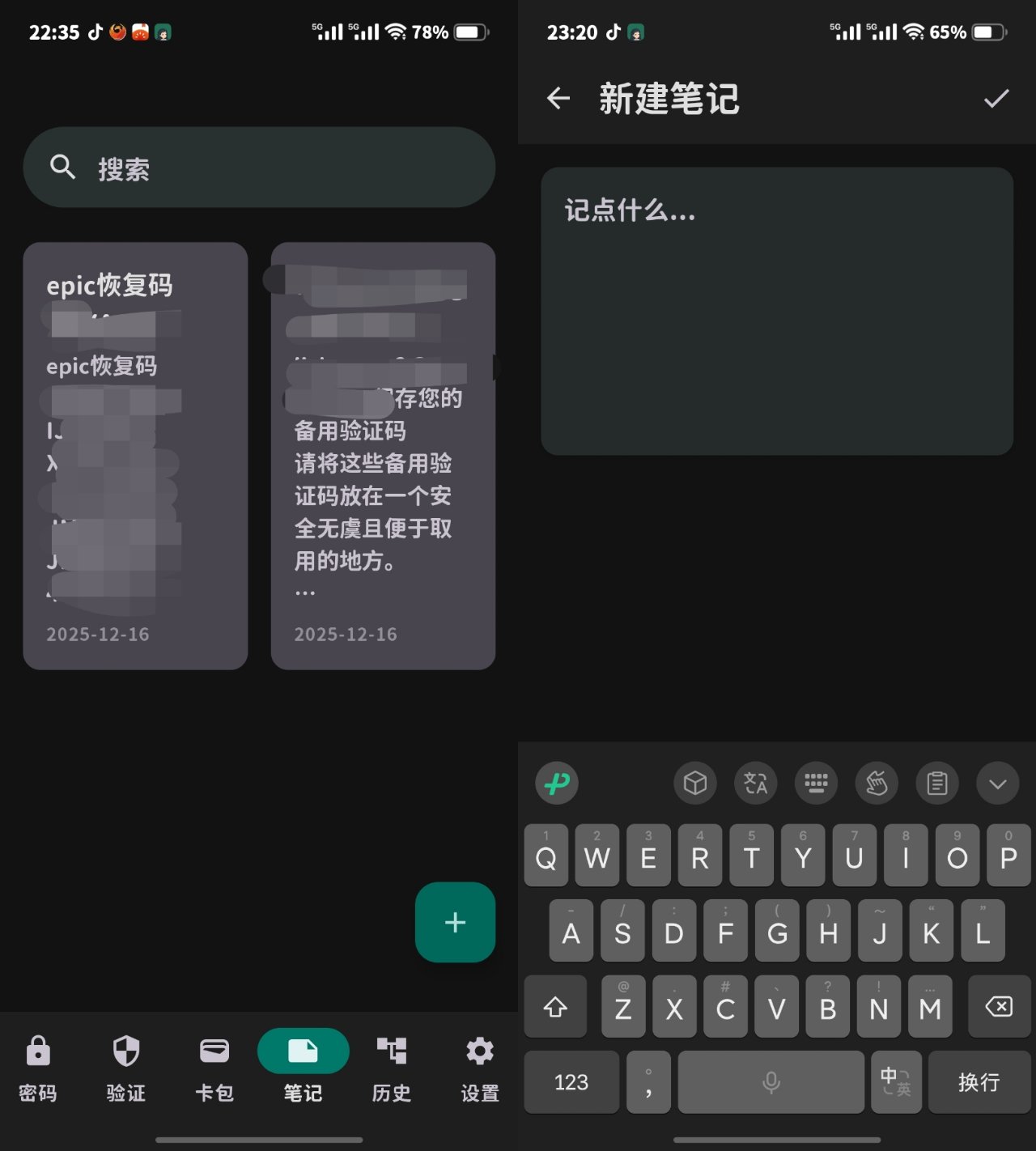
Next is the Card Wallet.
Card Wallet
The Card Wallet holds financial cards and personal identity credentials. It also supports securely attaching image snapshots of physical IDs, which can be downloaded back to local storage whenever needed.
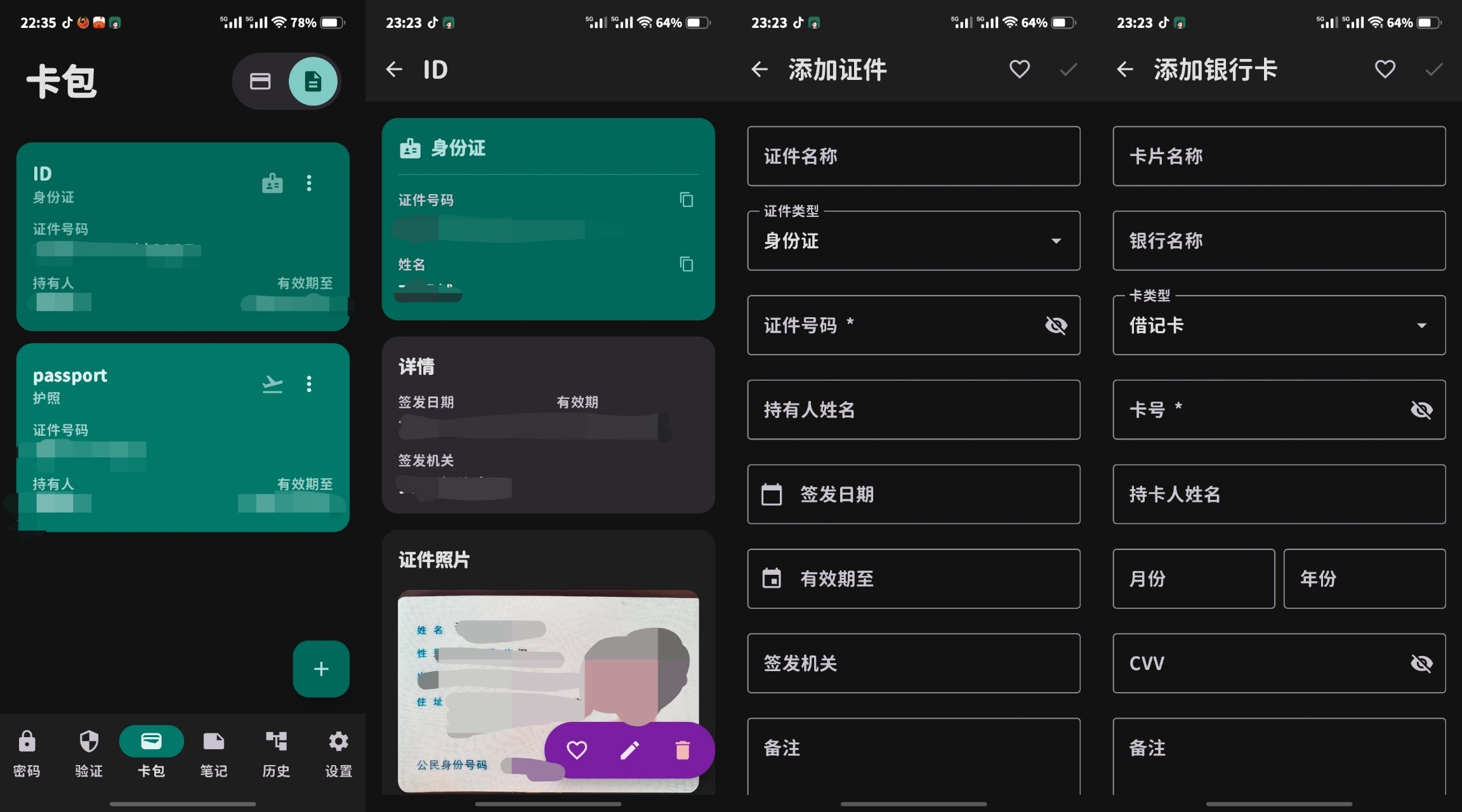
The system keeps it plain and practical. It's a lifesaver for looking up passport numbers quickly when you don't have them memorized.
Let's look at the History tab.
History Page
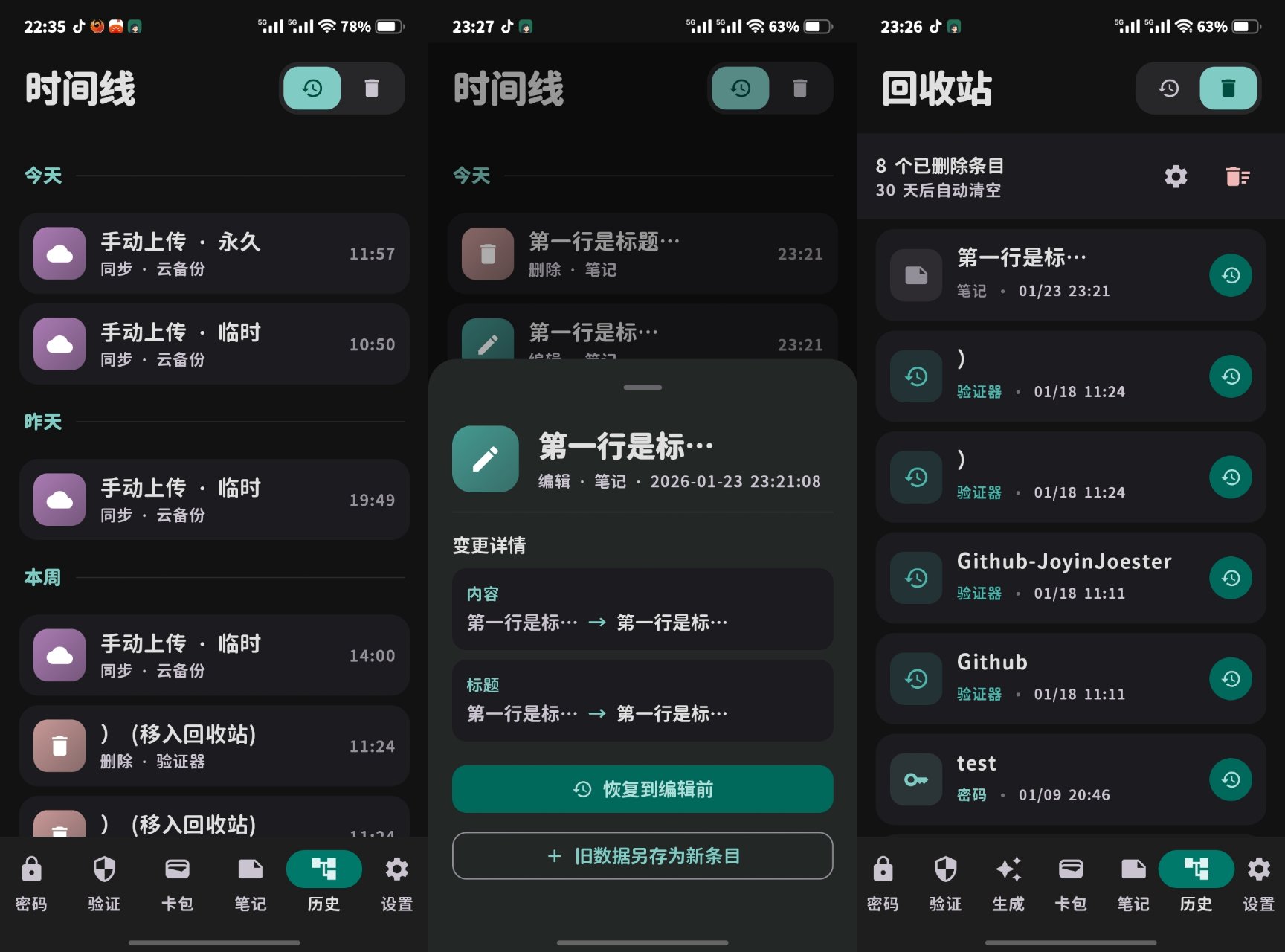
The History hub is split into two sections: "Timeline" and "Recycle Bin".
The Timeline keeps a chronological audit trail of your changes, allowing you to review past revisions, revert edits on entry fields, or clone historical records into brand new entries. The Recycle Bin lets you instantly recover items you deleted by mistake.
Now, let's explore Monica's configuration dashboards.
Aesthetic Theme Engine
The UI is built entirely on Material 3 (M3) design principles. While it natively samples dynamic accents directly from your system wallpaper, Monica also bundles three distinct preset theme categories:
Category 1: Natural Themes
Features 7 color variations: Default, Ocean Blue, Sunset Orange, Forest Green, Tech Purple, Black Mamba, and Soft Black Purple.
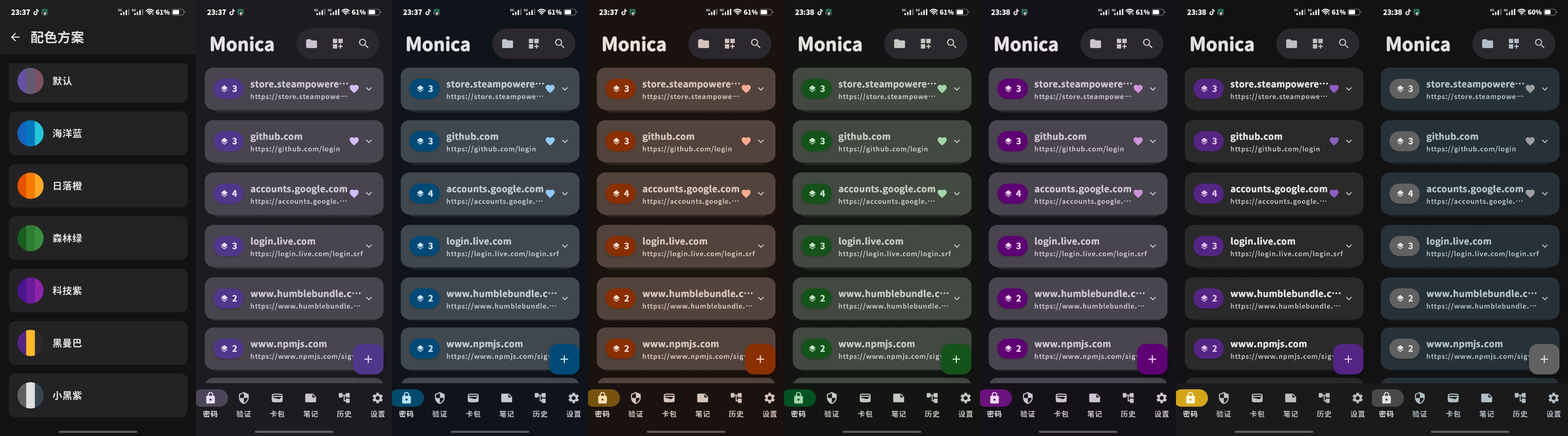
(Fun fact: Black Mamba isn't entirely deep black, and Soft Black Purple leans towards a muted tone.)
Category 2: Monet Presets
Features 6 painterly palettes: Water Lilies, Impression Sunrise, The Japanese Bridge, Licorice Team, Rouen Cathedral, and Houses of Parliament - Fog.
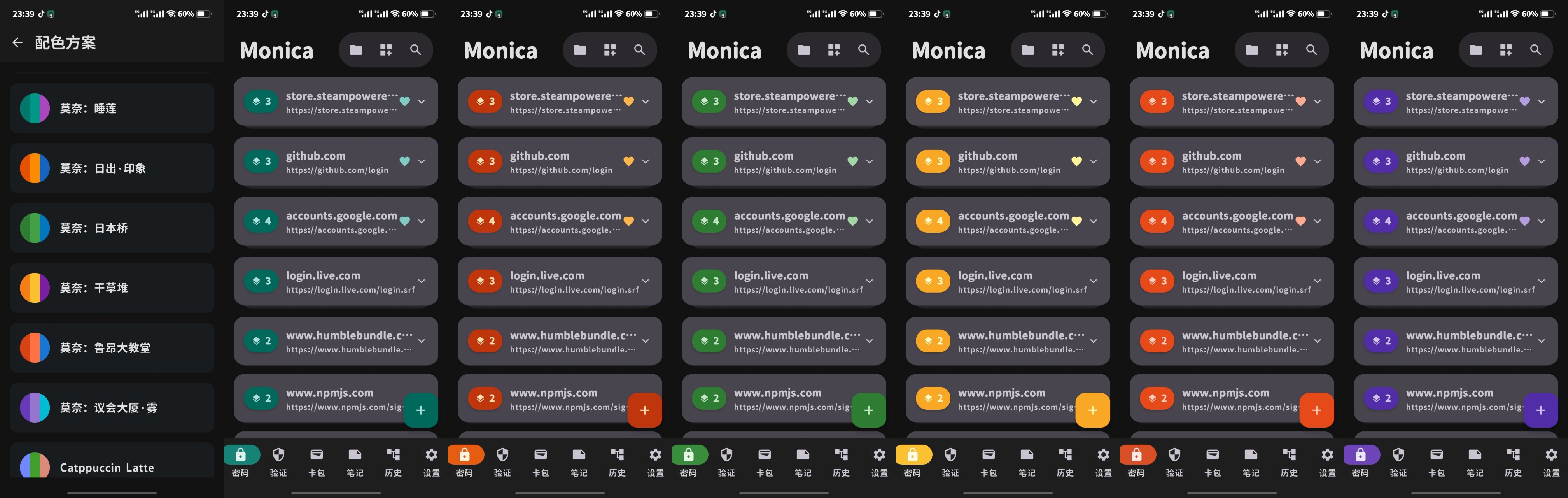
Among these, Water Lilies is my absolute favorite—it's incredibly fresh, soft, and easy on the eyes.
Category 3: Catppuccin Patches
The famous, beloved Catppuccin color theme ecosystem. If your terminals, Android Studio, and IDE themes use this aesthetic, you will feel right at home.
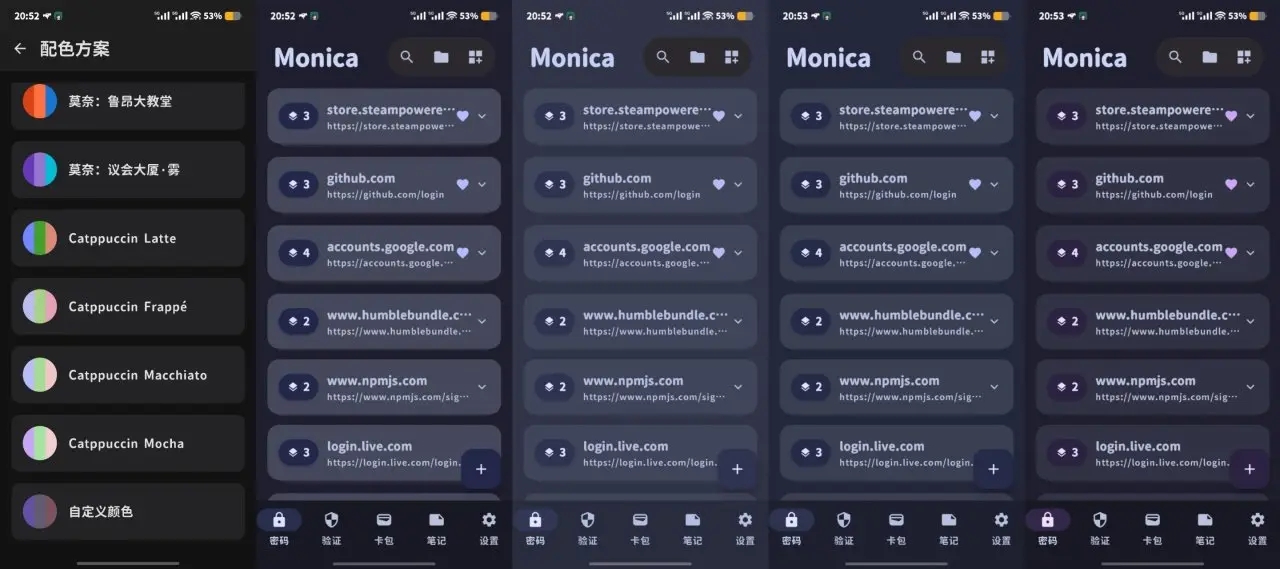
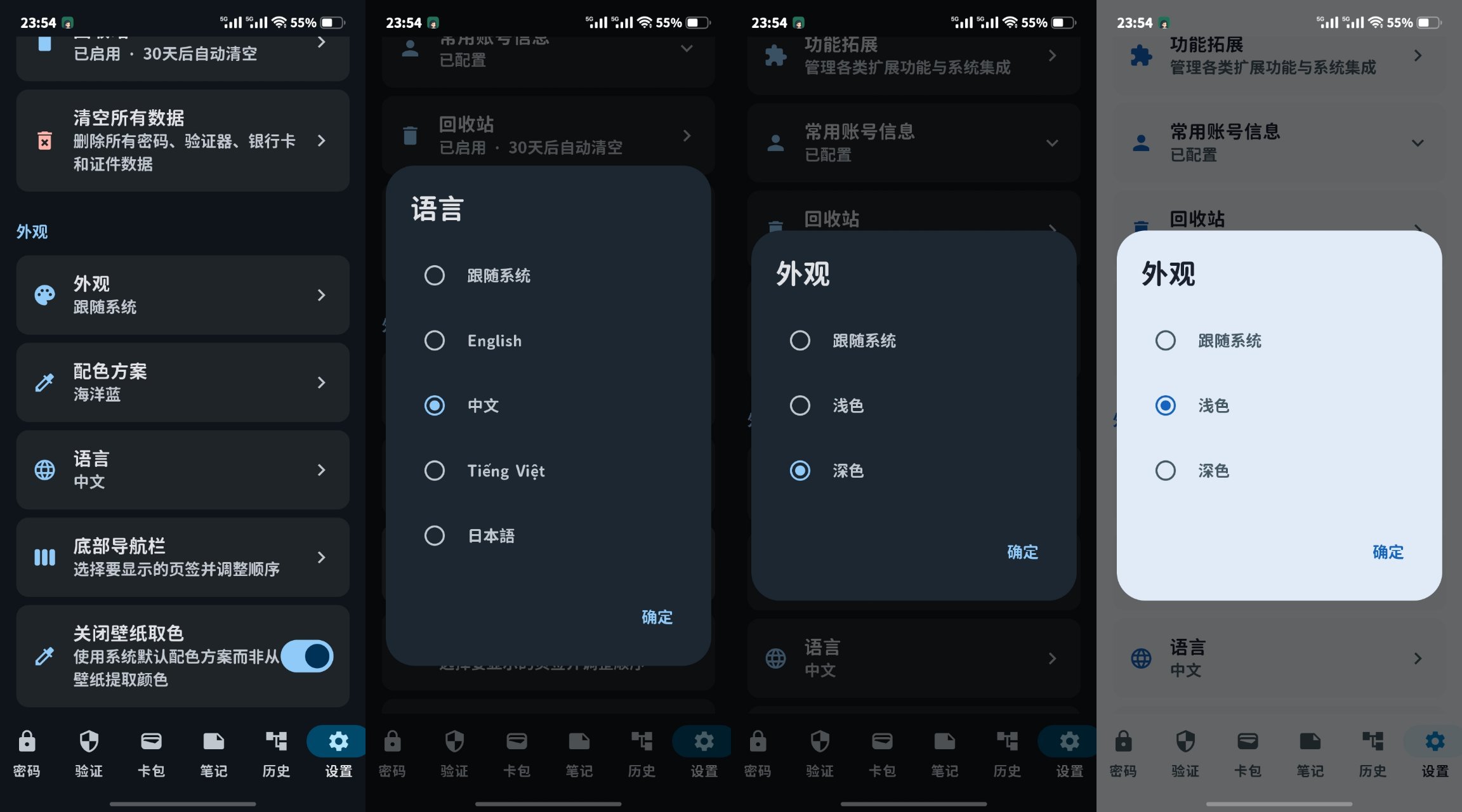
General Appearance Controls
The Appearance menu lets you configure your preferred locale language and toggle between light and dark display modes.
IMPORTANT
If "Dynamic Wallpaper Color Sampling" is enabled, chosen preset theme colors will be overridden. Turn off wallpaper sampling to apply your custom presets!
Monica Plus
Monica Plus is an honor-system contribution option; it is not a paywall, nor does it gate software features. If you are not in a position to tip, you can tap the unlock button to activate everything for free. Enjoy it without worries!
Furthermore, enforcing strict server-side licensing checks invites unofficial cracked versions, which often carry unauthorized code adjustments or security backdoors—introducing serious vulnerabilities to users.
Next are the critical Security parameters.
Security Setup
Enabling "Fingerprint Unlock" eliminates repetitive master password prompts during standard secure workflows. While face recognition was tested, its high sensitivity triggered unintended authentications during sensitive prompts, so the app relies strictly on secure fingerprint sensors.
Turning on "Screen Capture Protection" prevents screenshots or screen recordings anywhere inside Monica, keeping your credentials hidden from background malware.
Here, you can also customize application auto-lock intervals, update your master password, or set security questions. If you forget your master password without setting security questions, your data cannot be recovered, and a complete app data wipe will be required.
The Security Analyzer checks the health of your saved accounts against vulnerable parameters. This analysis links to the secure, third-party Have I Been Pwned (HIBP) API.
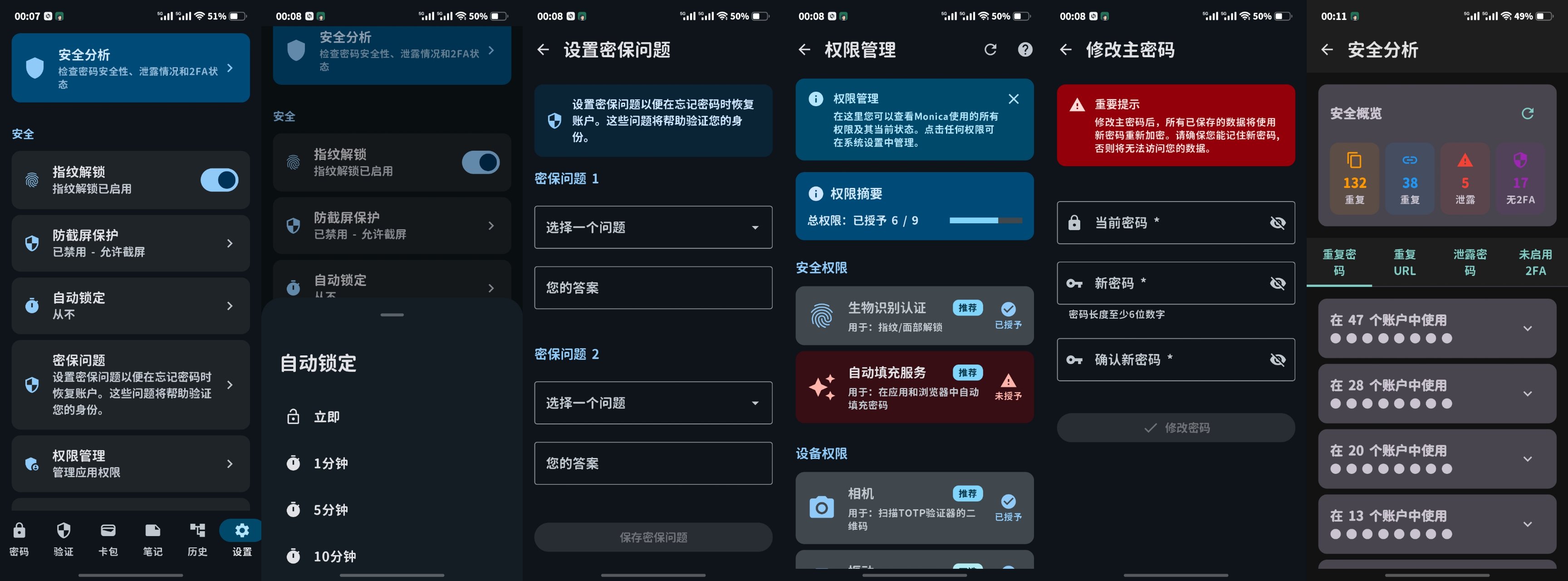
Next is the "Data Management" area.
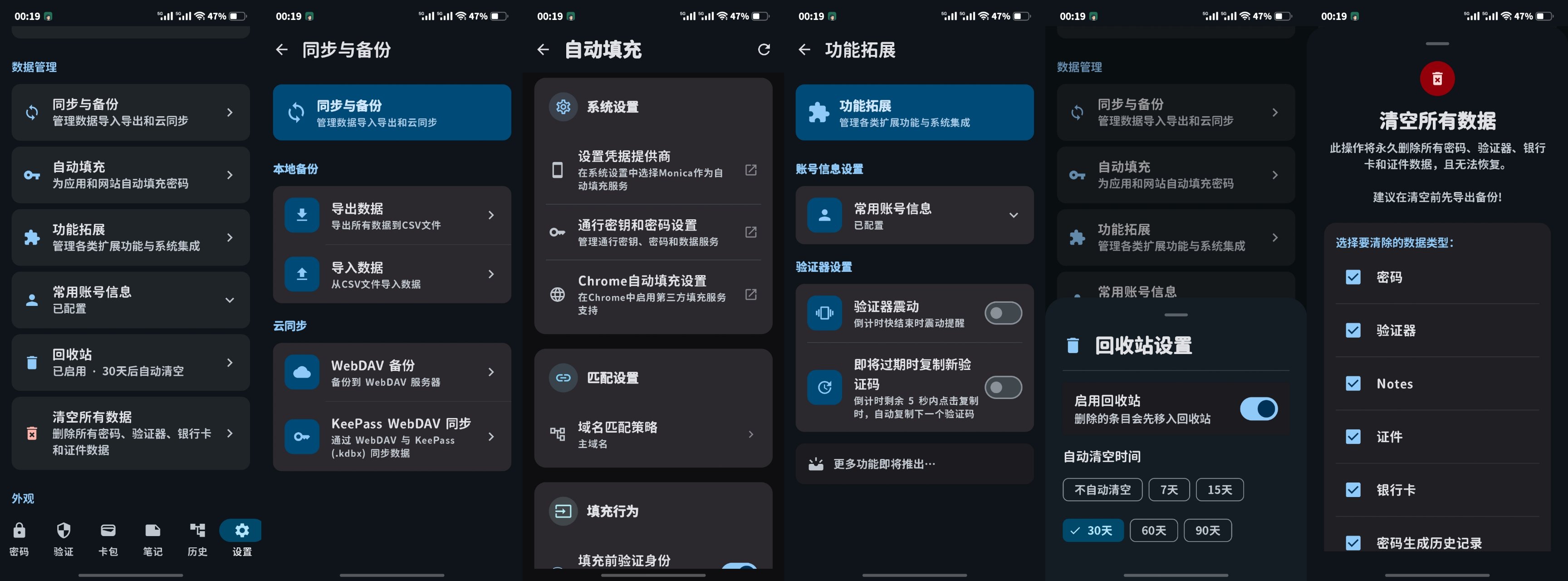
(Yes, the "Extensions" tab accidentally wound up nested here because I rushed out to meet a friend the day I built it! I'll refactor its location soon.)
This menu handles autofill integration, synchronization workflows, extension toggles, recycle bin clearing, and master resets.
Let's look into the Sync and Backup interface.
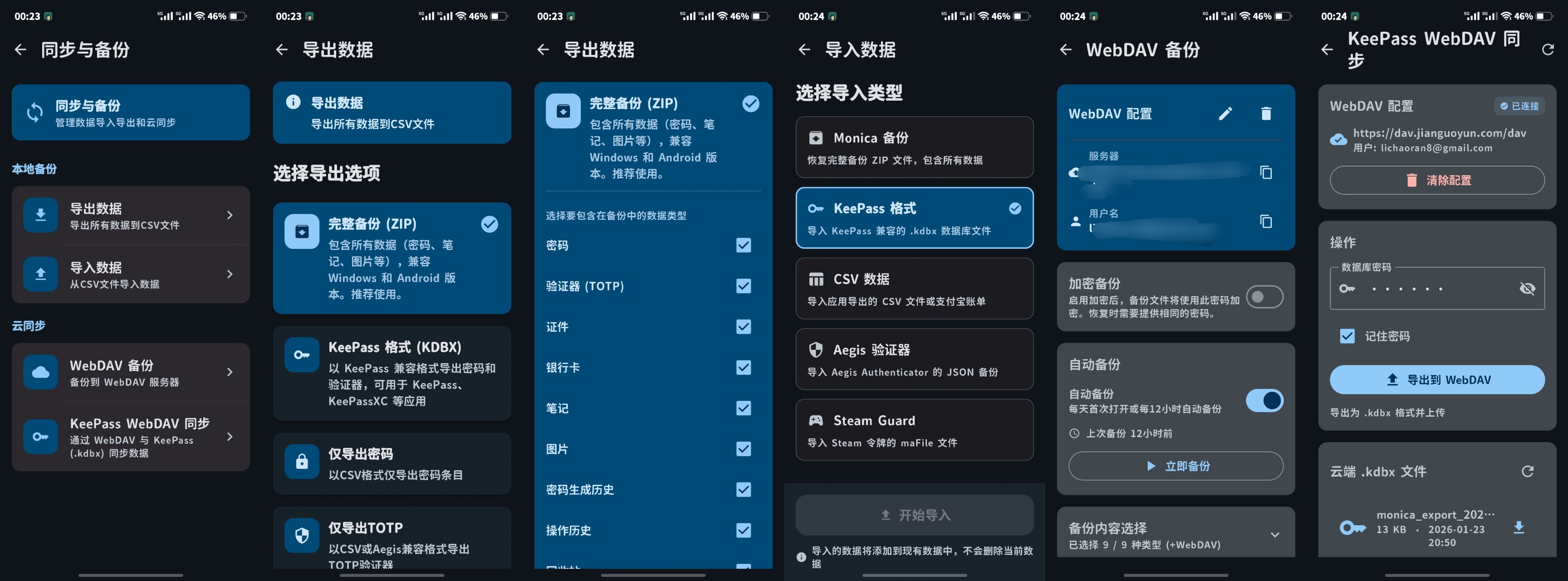
When exporting data via Full Backup, tapping the export target a second time opens advanced options to pick and choose specific entry types. This backup matches the underlying structure used in WebDAV automation.
Exporting formats include standard KeePass structures or Aegis Authenticator schemas, making it easy to transition your data to other software if Monica doesn't suit your needs.
WebDAV operations support standard Monica file backups or KeePass-compatible synchronizations. This implementation brings native KeePass file compatibility directly into Monica! Bitwarden-compatible replication is next on our roadmap, as I want this tool to remain incredibly powerful and versatile for everyone.
Finally, we have the developer utilities.
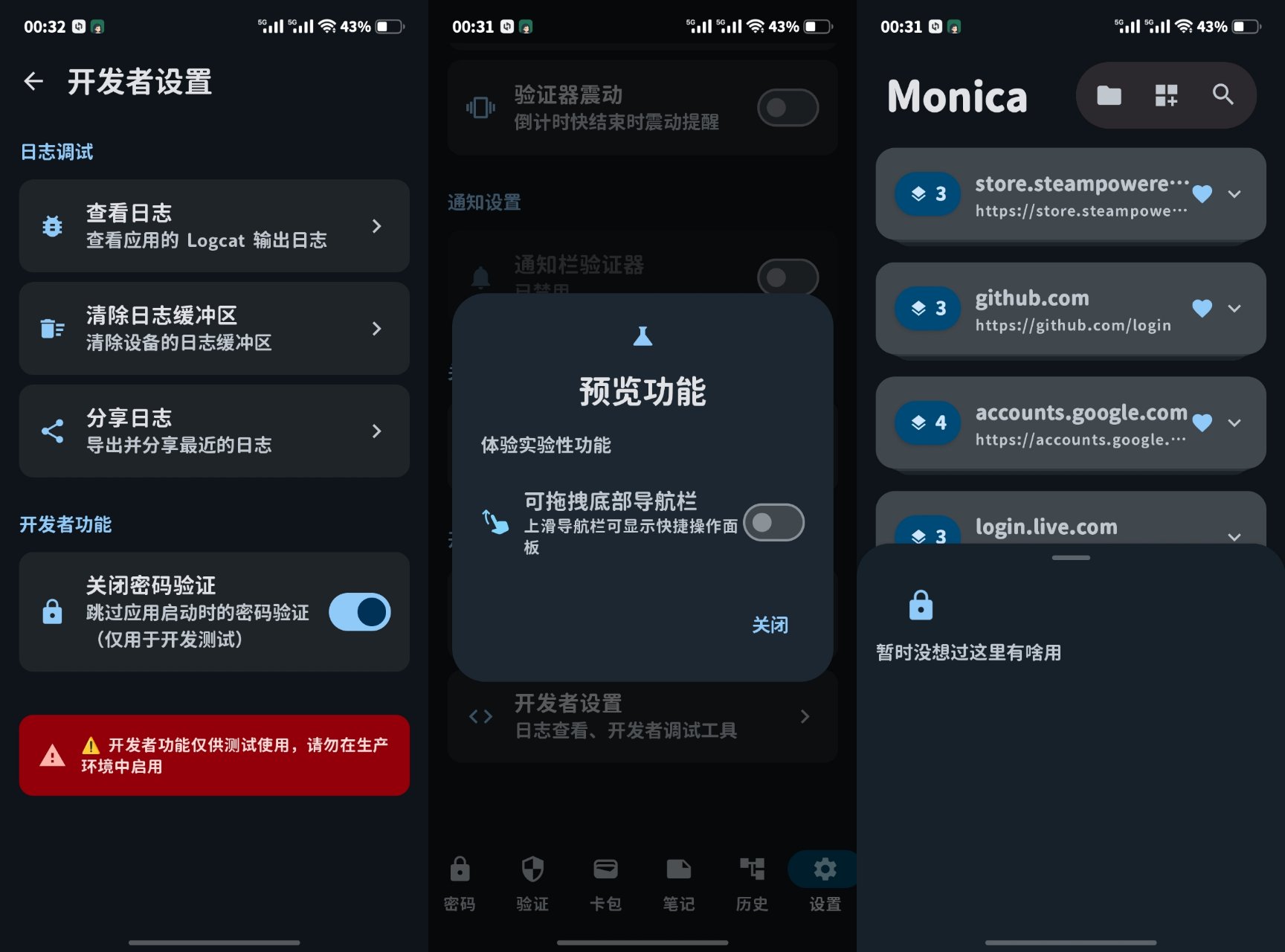
The Developer Options tab includes an active logging terminal for debugging. (There's a small bug where real-time logs don't refresh reliably in the view. Since I debug directly inside Android Studio anyway, I haven't patched it yet, but it's on my to-do list.)
You can also toggle off startup password validation completely for rapid testing.
The Preview section offers experimental features like draggable bottom navigation tracks. While it's not strictly necessary right now, it serves as a foundation for implementing a swipeable dual-row dock once our feature sets expand. For now, the system is highly stable, so let's keep it simple!